
Self-taught Software Developer | Full-Stack, DevTools & Open Source
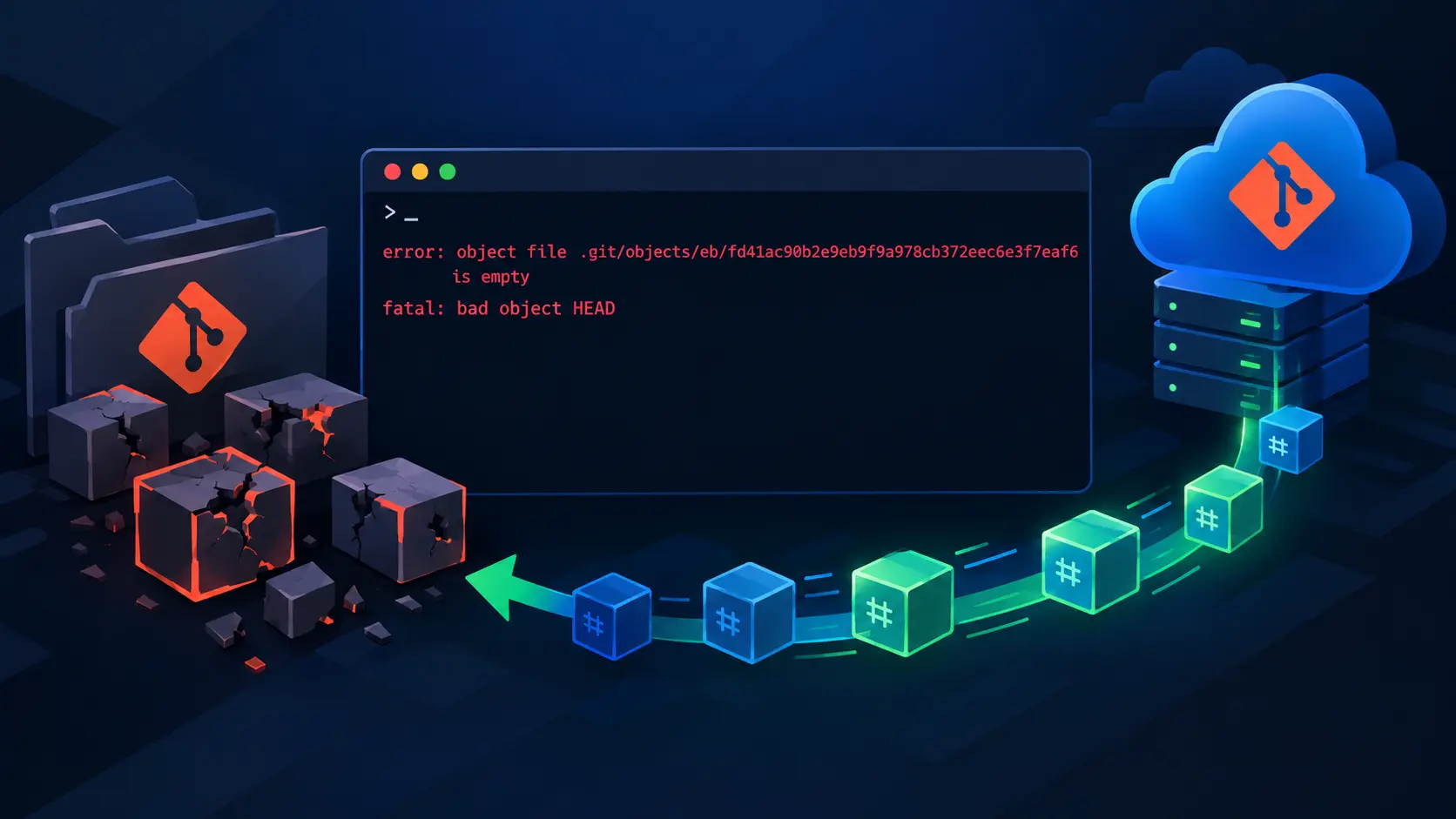
Fix Git Corrupted Object Files and Restore Your Repository
Recover a Git repository with empty object files using a remote copy.
I recently rangit statusin a project and got this instead of the usual output:
error: object file .git/objects/eb/fd41ac90b2e9eb9f9a978cb372eec6e3f7eaf6 is empty
fatal: bad object HEAD
At first, it looked like the repository was gone. It wasn’t. One or more files inside.git/objects/had become empty, so Git could no longer read part of the repository history.
This can happen after a power cut, a disk problem, or an interrupted Git command. If the important commits have already been pushed to a remote repository, the local copy can usually be repaired.
This is the process I used with a project called cutefetch. The commands below include both Unix-style shells (Linux/macOS/Git Bash) and Windows PowerShell.
Before you start
You will need a remote copy of the repository, terminal access, and a safe copy of any work that has not been committed or pushed. The last item matters becausegit reset --hardremoves local changes from the working tree.
1. Make a backup
Unix/macOS/Git Bash:
cp -r ~/cutefetch ~/cutefetch-backup
Windows PowerShell:
Copy-Item -Recurse .\cutefetch .\cutefetch-backup
Copying the whole directory is the simplest option. Do this before deleting anything from.git.
2. Look for empty object files
Unix/macOS/Git Bash:
cd ~/cutefetch
find .git/objects/ -type f -empty
Windows PowerShell:
Set-Location .\cutefetch
Get-ChildItem .git\objects -File -Recurse | Where-Object Length -eq 0
For example:
.git/objects/eb/fd41ac90b2e9eb9f9a978cb372eec6e3f7eaf6
.git/objects/f9/7a50b700994a9baa5f8115242e8c2cbb3e7684
.git/objects/de/8242a2756657f68491f66ae62793a9a288054e
Those empty files are the immediate problem. Errors such asfatal: bad object HEADorfatal: loose object is corruptcan be symptoms of the same issue.
3. Check the remote
git remote -v
You should see something similar to:
origin  https://github.com/DevAbabil/cutefetch.git (fetch)
origin  https://github.com/DevAbabil/cutefetch.git (push)
Adding a remote does not remove or change any files inside.git/objects/, so you can do this before touching the corrupted objects. If there is no remote, first make sure your backup is safe, then add the repository’s remote URL:
git remote add origin https://github.com/your-username/your-repository.git
Replace the example URL with the actual URL of your GitHub, GitLab, or Bitbucket repository. Confirm that it was added correctly:
git remote -v
If the remote repository does not contain the commits you need, adding it will not recover them. The remote must be a copy of this project, or at least contain the branch and history you want to restore.
4. Remove the empty objects and fetch again
Once the backup and remote are confirmed:
Unix/macOS/Git Bash:
find .git/objects/ -type f -empty -delete
git fetch origin
Windows PowerShell:
Get-ChildItem .git\objects -File -Recurse |
  Where-Object Length -eq 0 |
  Remove-Item
git fetch origin
Adding the remote by itself does not repair the repository. The empty object files still need to be removed before fetching; otherwise Git may continue to treat them as corrupt instead of replacing them. This command only removes broken local files. It does not delete anything from the remote.
5. Point the local branch at the remote branch
If the project usesmain, run:
git reset --hard origin/main
Useorigin/masteror the appropriate branch name if the project uses something else. This restores the checked-out files to the remote state, which is why the backup was important.
6. Check the repository
git status
You should see something like:
On branch main
Your branch is up to date with 'origin/main'.
nothing to commit, working tree clean
7. Bring back local work
Copy back only the files you were changing. For example, on Unix/macOS/Git Bash:
cp -r ~/cutefetch-backup/src ~/cutefetch/
cp -r ~/cutefetch-backup/config ~/cutefetch/
On Windows PowerShell:
Copy-Item -Recurse .\cutefetch-backup\src .\cutefetch\
Copy-Item -Recurse .\cutefetch-backup\config .\cutefetch\
Review the changes before committing:
git status
git diff
Then commit and push as usual:
git add .
git commit -m "Restore work after fixing repository corruption"
git push
What this recovery does and does not restore
The remote gives you back pushed commits, branches, and files that were already uploaded. It cannot restore commits that existed only in the damaged local repository.
Uncommitted work may still be recoverable from the backup, provided you made it before runninggit reset --hard. Untracked files need the same treatment; Git does not know about them, so copy them back manually.
Avoiding the problem next time
- Push important commits regularly.
- Avoid interrupting Git commands while they are writing data.
- Keep backups of work that has not been committed yet.
- Check the disk if corruption happens more than once.
For disk checks, use the tool appropriate for your system. On Linux, that may besmartctl; on macOS,diskutil; on Windows, you can usechkdskor the drive-health information in Windows Settings. Verify the drive name before running disk-repair commands.
Final note
An empty file under.git/objects/looks alarming, but it does not always mean the entire repository is lost. If the repository has a usable remote, removing the broken objects, fetching again, and resetting to the remote branch is often enough to get back to a working checkout.