
Self-taught Software Developer | Full-Stack, DevTools & Open Source
Zsh Corrupt History File: Fix It in 5 Seconds
Quick and easy solution to fix the annoying "zsh corrupt history file" error that appears after system crashes.
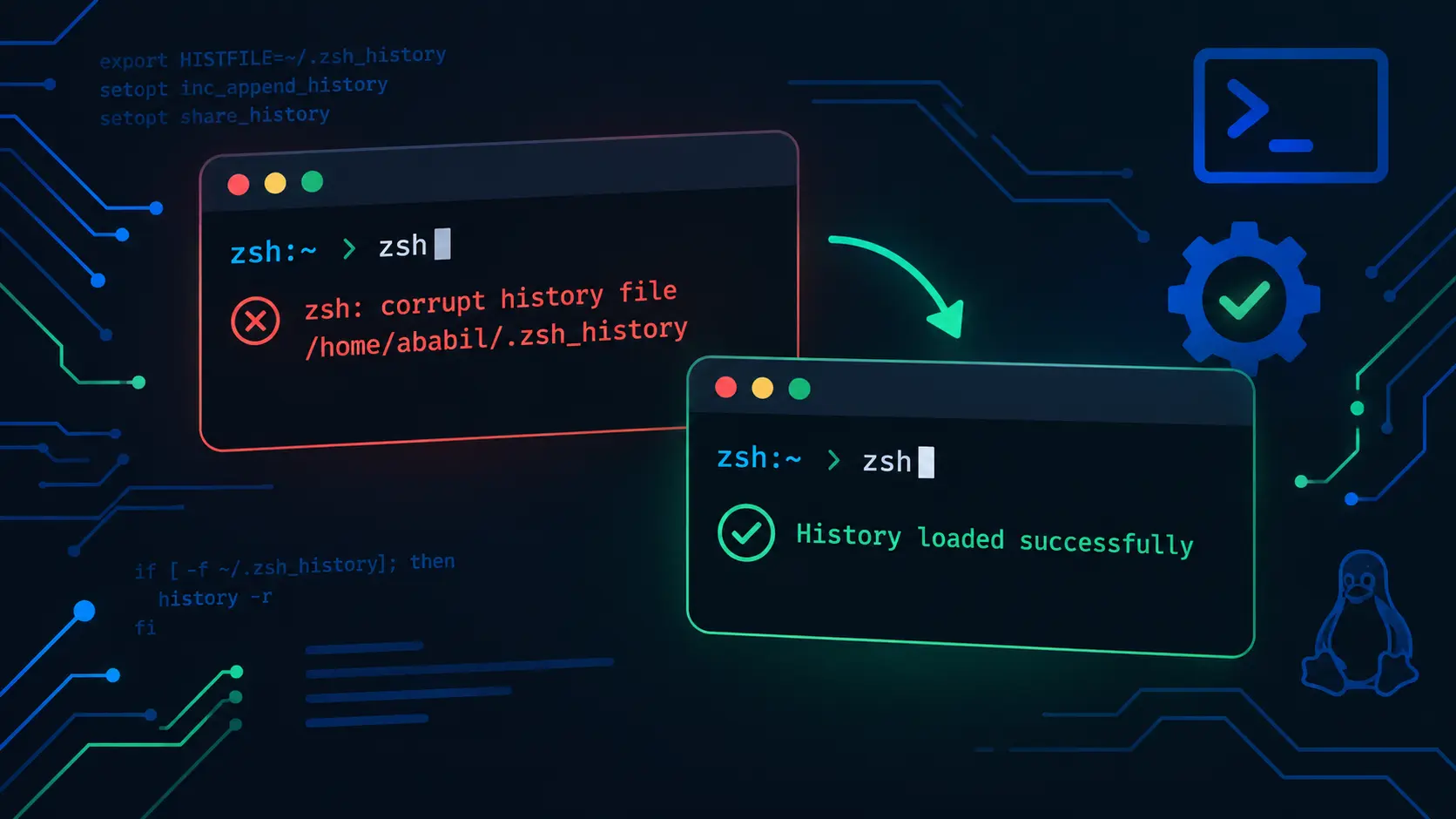
If you’ve seen the dreadedzsh: corrupt history file /home/username/.zsh_historyerror message when opening your terminal, you’re not alone. This error typically occurs after an unexpected system shutdown, crash, or when the shell history file becomes malformed. The good news is that it’s easy to fix.
This guide walks you through recovering from a corrupt zsh history file and explains how to prevent the issue from recurring.
Understanding the Problem
Zsh maintains a history file (.zsh_history) in your home directory that stores all the commands you’ve typed. When this file becomes corrupted—usually from incomplete writes during a crash—zsh refuses to load it and displays the error message.
Quick Fix: Start Fresh
For most users, the simplest solution is to delete the corrupt file and start with a clean slate:
rm ~/.zsh_history
That’s it! Open a new terminal window and the error will be gone. Zsh automatically creates a fresh.zsh_historyfile, and you can continue working normally.
This approach is recommended if you don’t rely heavily on your command history or can’t remember specific commands you need to recover.
Alternative: Preserve Your History
If you need to keep your command history, you can rebuild the file while preserving most of your previous commands.
Step 1: Move the Corrupt File
First, rename the corrupt file:
mv ~/.zsh_history ~/.zsh_history_bad
Step 2: Extract Valid History
Use thestringscommand to filter out corrupted data and keep only valid entries:
strings ~/.zsh_history_bad > ~/.zsh_history
Step 3: Fix File Permissions
Ensure the new history file has the correct permissions:
chmod 600 ~/.zsh_history
Step 4: Verify the Fix
Open a new terminal window. The error should be gone, and most of your command history should be accessible.
Step 5: Clean Up (Optional)
Once you’ve verified everything works, remove the backup:
rm ~/.zsh_history_bad
Preventing Future Corruption
History file corruption usually happens during unexpected shutdowns. While you can’t always prevent crashes, you can reduce the risk:
Enable Immediate History Writing
Add this line to your~/.zshrcfile to write each command to the history file immediately instead of waiting until the session ends:
setopt INC_APPEND_HISTORY
This option writes commands to the history file as soon as you press Enter, reducing the chance of data loss.
Set History File Options
Consider adding these options to your~/.zshrcfor better history management:
# Write commands immediately and share history across sessions
setopt SHARE_HISTORY

# Ignore duplicate commands
setopt HIST_IGNORE_DUPS

# Don't add commands starting with a space to history
setopt HIST_IGNORE_SPACE

# Remove extra blanks from commands before saving
setopt HIST_REDUCE_BLANKS
After adding these lines, reload your configuration:
source ~/.zshrc
Recovering Older History
Only if you specifically need old commands from the backup file:
# Extract valid entries from the backup
strings ~/.zsh_history_bad > /tmp/old_history

# Append to current history
cat /tmp/old_history >> ~/.zsh_history

# Remove duplicates (optional)
sort -u ~/.zsh_history -o ~/.zsh_history

# Clean up
rm /tmp/old_history ~/.zsh_history_bad
Note: This loses chronological order and timestamps.
Troubleshooting
Error Persists After Fix
If the error continues after following these steps:
- Check file permissions:
ls -la ~/.zsh_history - Ensure the file is owned by your user:
chown $USER:$USER ~/.zsh_history - Verify your
~/.zshrcdoesn’t have conflicting history settings
History Not Saving
If commands aren’t being saved to history:
- Check that
HISTFILEis set:echo $HISTFILE - Verify the history size:
echo $HISTSIZE(should be greater than 0) - Ensure the directory is writable:
ls -ld ~
Add these to your~/.zshrcif they’re missing:
HISTFILE=~/.zsh_history
HISTSIZE=10000
SAVEHIST=10000
Conclusion
The “corrupt history file” error is easily fixable. For most users, simply deleting the file withrm ~/.zsh_historyis the fastest solution. If you need to preserve your command history, use thestringscommand to recover valid entries.
Key takeaways:
- Quick fix: Delete the file with
rm ~/.zsh_historyand start fresh - If history matters: Use
stringsto extract valid entries from the corrupt file - Enable
INC_APPEND_HISTORYin your~/.zshrcto reduce future corruption risk - Set appropriate history options for better management
With these simple steps, you’ll be back to normal terminal usage in seconds.